How Can We Help?
How to move the game Home Directory to a new disk or outside OneDrive
This post is also available in:  Français
Moving the game’s home directory (where saves, mods, and settings are stored) to another disk can help with storage management or performance.
Windows Method: Using Junction Points
- Close the game completely
- Locate your current game folder:
C:\Users\[YourUsername]\Documents\Euro Truck Simulator 2or
C:\Users\[YourUsername]\Documents\American Truck Simulator- Move the entire folder to your desired location (e.g.,
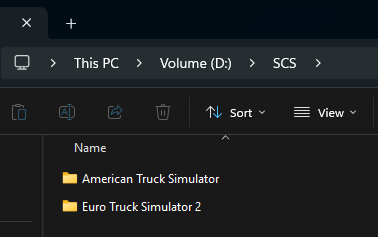
D:\SCS\)- Let’s say you have a spare disk D:\ where you will create a directory named “SCS“. Inside D:\SCS you will create:
- a Directory named Euro Truck Simulator 2 (if you have this game)
- a Direcotry named American Truck Simulator (if you have this game)
- Copy (maintain original folder as backup) and paste the folder
- Let’s say you have a spare disk D:\ where you will create a directory named “SCS“. Inside D:\SCS you will create:
The new “D:\SCS” is like a redirect for the game to use a new home directory instead of the default C:\Users\[YourUsername]\Documents
The final directory structure must appear as below:
Change game startup parameter using -homedir Launch Parameter
You can also use a launch parameter to specify a custom home directory without creating links:
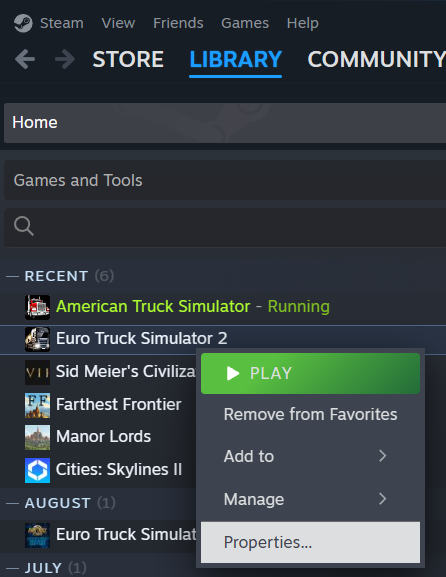
- In Steam, right-click the game and select Properties
- Under General > last field, set -homedir D:\SCS or whatever is the directory you have created
PLEASE NOTE: Don’t set “D:\SCS\Euro Truck Simulator 2” or “D:\SCS\American Truck Simulator” otherwise the game will create D:\SCS\Euro Truck Simulator 2\Euro Truck Simulator 2 when launched.
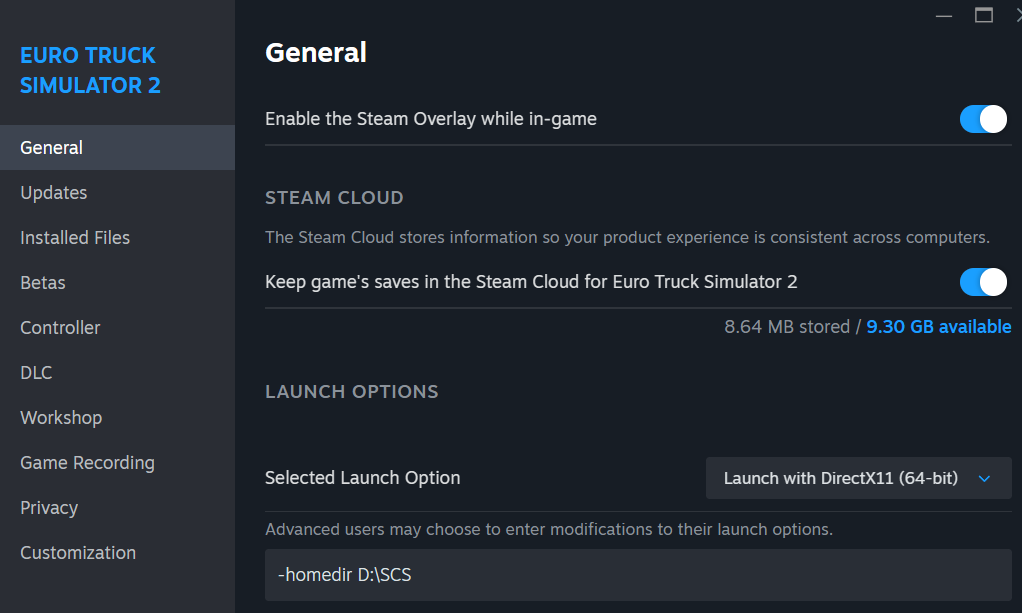
- The game will now use this directory for all saves, mods, and settings
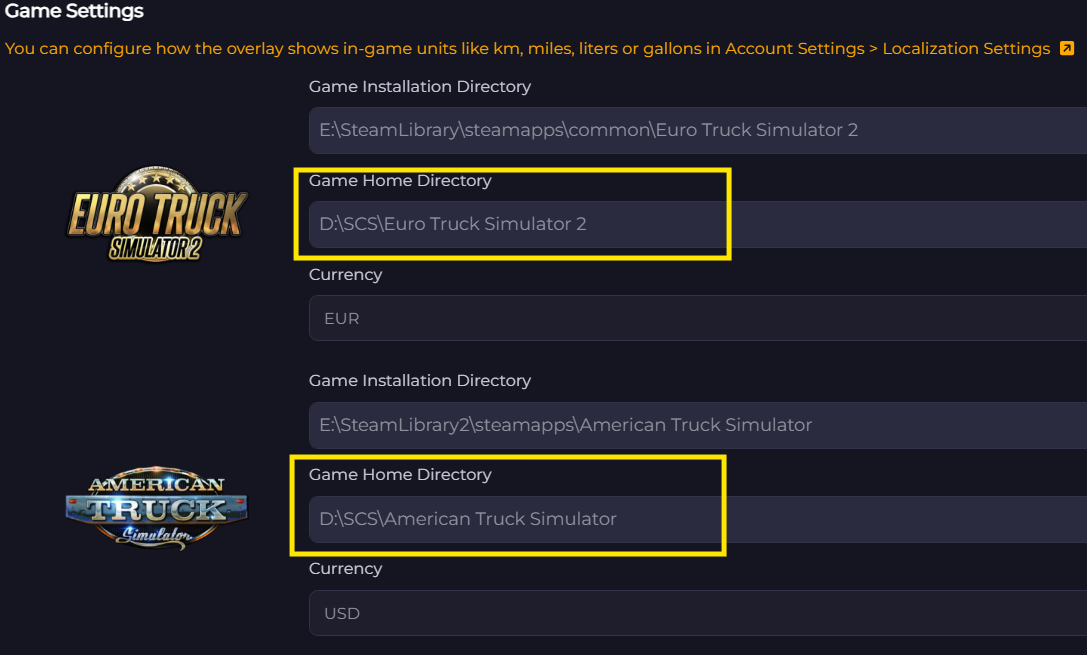
Update Trucky configuration
Then, you have to tell Trucky there is a new home directory to use to locate your config.cfg, profiles and settings:
Now you can start the game.